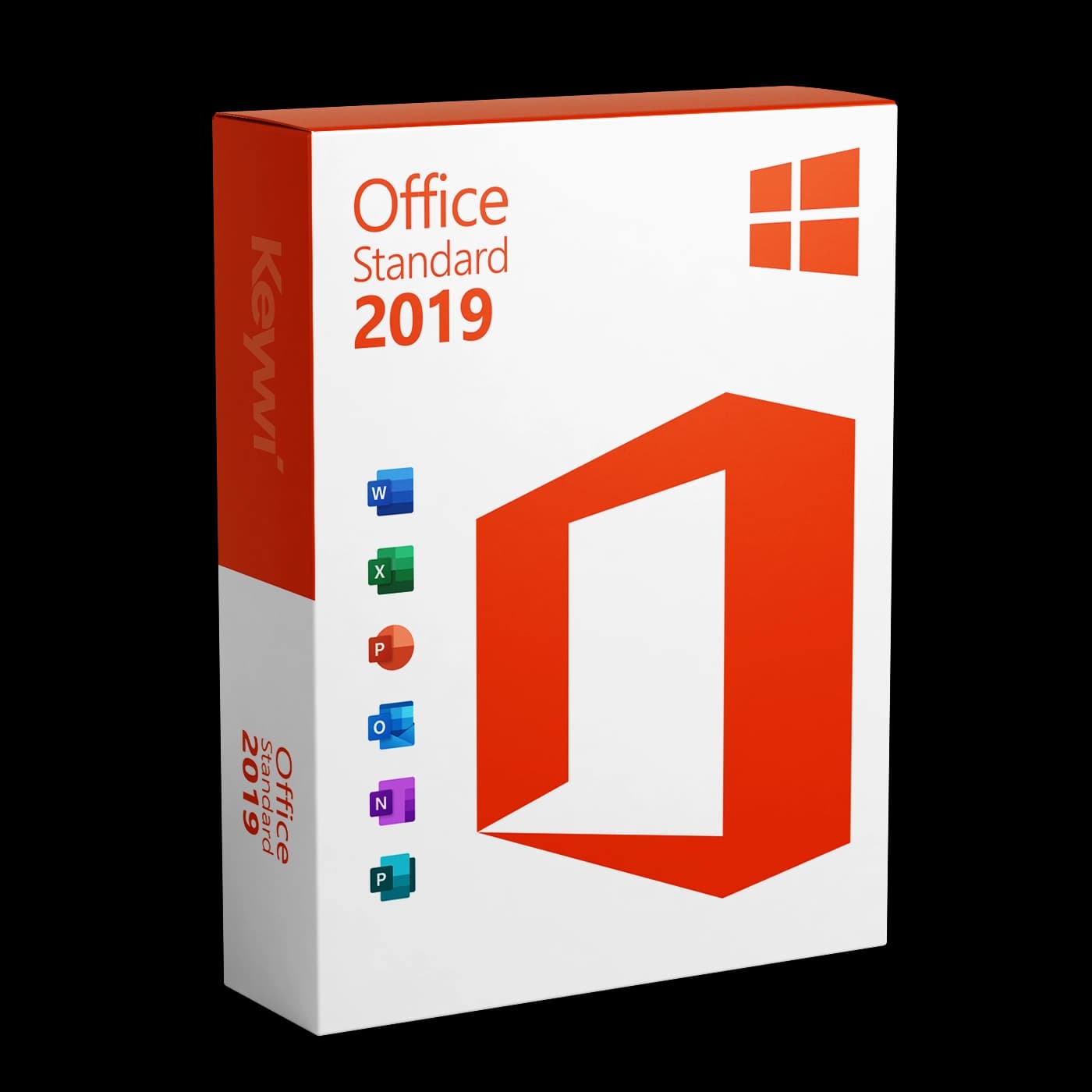




This guide walks you through downloading, installing and activating Microsoft Office 2019 Standard on Windows. You received your 25-character product key by email after your purchase, so have it ready for activation. A Microsoft account is not required for this product.
System requirements
Office 2019 Standard runs only on Windows 10 and Windows 11. Older systems such as Windows 7 or 8.1 are not supported.
- Operating system: Windows 10 or Windows 11 (alternatively Windows Server 2019/2022)
- Memory: 4 GB RAM (2 GB on 32-bit systems)
- Hard disk: at least 4 GB of free disk space
- Display: resolution of 1280 × 768 or higher
Included programs: Office 2019 Standard includes Word, Excel, PowerPoint, Outlook, OneNote and Publisher. Access is only included in the Professional Plus edition.
1. Preparation: remove preinstalled Office
Many new PCs come with a trial version of Microsoft 365 preinstalled. Remove it before installing, as two Office installations otherwise block each other and activation can fail.
- Open
Settings > Apps > Installed apps. - Look through the list for entries such as "Microsoft 365" or "Office".
- Click Uninstall and follow the instructions.
- Then restart the PC.
2. Download Office 2019 Standard
Download the offline installer for Office 2019 Standard directly from our download page. No Microsoft login is needed for this.
- Open our download page.
- Select Office 2019 Standard there in the language you want.
- Download the installation file and save it somewhere easy to find, for example in your
Downloadsfolder.
3. Run the installation
- Double-click the downloaded installation file to run it.
- Confirm the User Account Control security prompt with Yes.
- The setup installs Office automatically in the background. Depending on your system this takes a few minutes, so leave the window open.
- Wait for the message that the installation is complete, then close the setup.
4. Activate with your product key
Activation takes place directly in one of the Office applications. Make sure you have an internet connection.
- Open Word or Excel.
- If an activation window appears on first launch, enter the 25-character product key from your email there.
- If no window appears: click
File > Account > Change product keyand enter the key there. - Confirm with Activate. Office checks the key online and unlocks the licence.
- Check under
File > Accountthat "Product Activated" is displayed.
Telephone activation: With volume licence keys, Office sometimes offers activation by telephone instead of online activation. This is a fully automated system, you do not speak to anyone. Follow the prompts and enter the displayed installation ID using your phone keypad. You will find step-by-step instructions in our activation help.
Common problems
- Error message during installation: Usually an old Office or Microsoft 365 version is still installed. Remove it (see Step 1) and start the installation again.
- Key not accepted: Check for typing errors. Mix-ups such as "0" and "O" or "B" and "8" are common. It is best to copy the key directly from the email.
- "Unlicensed Product" after activation: Close all Office programs completely and open them again. Then check under
File > Accountwhether the licence is shown as activated. - Online activation fails: Check your internet connection and try again. If the error persists, use telephone activation or our activation help.
Help & support
If you get stuck at any point, our activation help offers solutions for the most common activation errors. Alternatively, you can reach our team at any time via live chat, and every purchase includes 90 days of free support. Please have your order number ready.