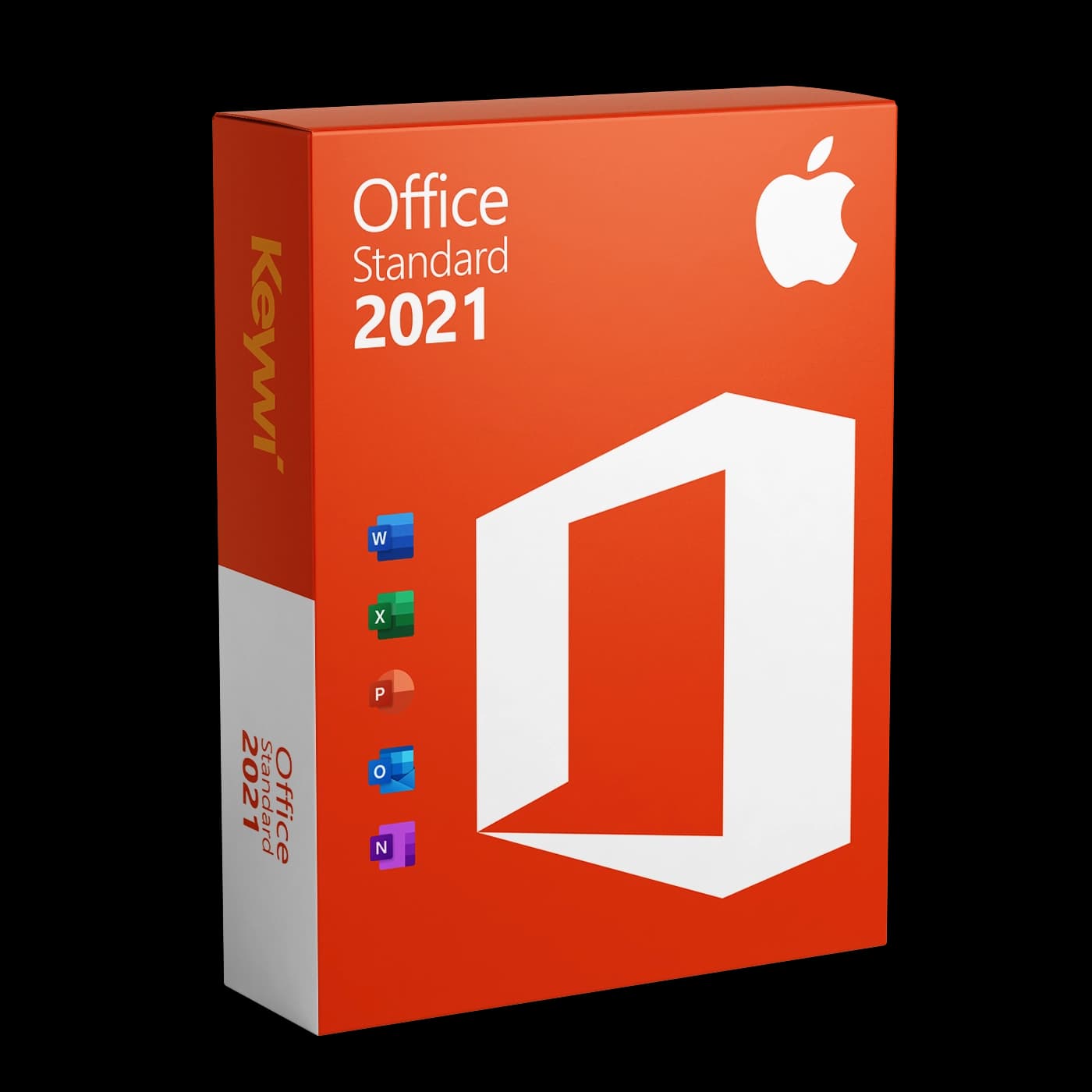




This guide walks you through downloading, installing and activating Office 2021 Standard for Mac. You will need your licence email from Keywi24 and around 20 minutes.
System requirements
Before downloading, check that your Mac meets the requirements. Office 2021 cannot be installed on systems that are too old.
- macOS: macOS 10.15 (Catalina) or later. Older versions such as Mojave are not supported.
- Processor: Intel and Apple silicon Macs (M1 to M4) are supported; on Apple silicon the apps run natively.
- Disk space: at least 10 GB of free disk space.
- Memory: 4 GB RAM.
- Internet: required for download and activation.
How to check your macOS version: Click the Apple menu in the top left and choose
About This Mac. The installed version number is shown there.
Before installing
- Remove old Office versions: Uninstall any existing Office or Microsoft 365 trial versions by dragging the apps from the
Applicationsfolder to the Bin. This avoids licence conflicts. - Do not use the App Store version: Word, Excel and the other apps from the Mac App Store only work with a Microsoft 365 subscription and cannot be activated with this licence. If installed, delete these versions first.
- Have your licence email ready: It contains your licence information and access to the downloads.
Step 1: Download the installer
Download the official installer from our download page. The installation file comes directly from Microsoft and is around 2 GB in size.
- Go to the Keywi24 download page.
- Select Office 2021 Standard for Mac.
- Download the
.pkgfile. By default it is saved to yourDownloadsfolder.
Step 2: Install Office
- Double-click the downloaded
.pkgfile to open it. - Follow the installation assistant and accept the licence terms by clicking Continue.
- Enter the password for your Mac user account when prompted (administrator rights required).
- Wait until the installation is complete. You will then find Word, Excel, PowerPoint, Outlook and OneNote in the
Applicationsfolder.
Note: If macOS does not open the file directly, right-click it and choose
Open. This confirms that you want to run the signed Microsoft installer.
Step 3: Activate the licence
Office 2021 Standard is a volume licence. Activation is therefore not done by typing a key into Word, but via a small licence package (Volume License Serializer), which you will also find on our download page.
- Make sure Office is fully installed (Step 2). The order matters: Office first, then the licence package.
- Download the licence package from the download page. This is also a
.pkgfile. - Double-click the package to run it and follow the assistant. It applies the licence to all Office apps automatically.
- Then open Word. You can skip the sign-in window on first launch. A Microsoft account is not required for this licence.
- To check: in the menu bar, open
Word > About Microsoft Word. The licence shown there should beOffice LTSC Standard for Mac 2021.
Important: The licence is valid for one Mac. Keep your licence email safe. If you ever reinstall, simply run both packages again in the same order.
Common problems
- "Unlicensed Product" message: Usually the licence package was run before Office or not at all. Run the licence package again and then restart Word.
- Installation fails: Check your macOS version (at least 10.15) and free disk space (10 GB). If necessary, update macOS via
System Settings > Software Update. - Old Microsoft 365 subscription on the Mac: Remnants of an earlier licence can block activation. Remove them with Microsoft's free licence removal tool (search microsoft.com for "Office License Removal Tool for Mac") and then run the licence package again.
- Apps come from the App Store: These versions do not accept the licence. Delete them and install Office from our download page.
- Updates: Office updates itself via Microsoft AutoUpdate. You will find this in every app under
Help > Check for Updates.
Help & support
If activation still does not work, our activation help walks you through the most common error messages.
You can also reach our support team via live chat. Every purchase includes 90 days of free support from the date of purchase. Please have your order number ready.